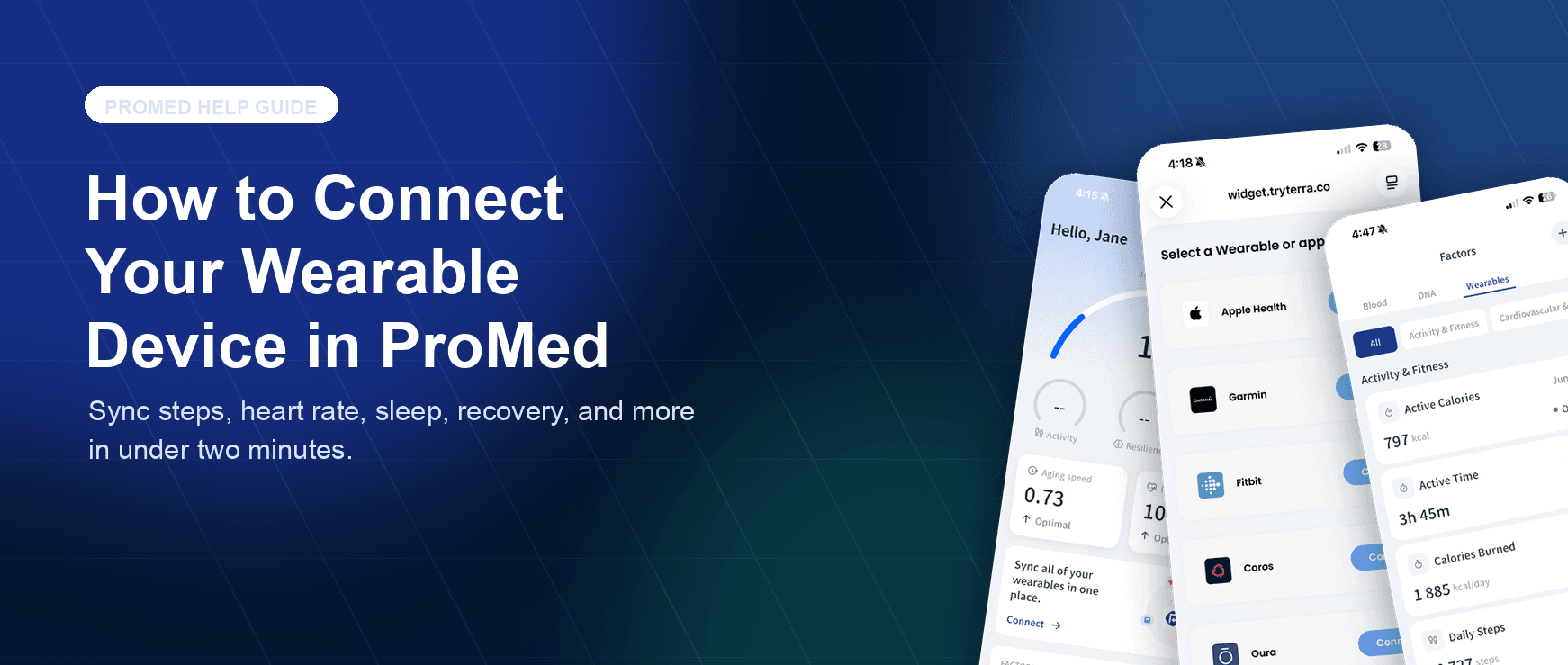
How to Connect Your Wearable Device in ProMed
Sync steps, heart rate, sleep, recovery, and more so your 24/7 AI health agent has the real-time context it needs.
Your health data is most powerful when everything works together. ProMed syncs with your wearable to help your AI health agent understand your daily activity, sleep, recovery, and physiological trends in context.
Follow the steps below to connect your wearable in under two minutes. Once connected, ProMed can use that live context to make your guidance sharper and less generic.
Tutorial
Step-by-step: connect your wearable
- 1
Step 1 of 9
Open the ProMed app
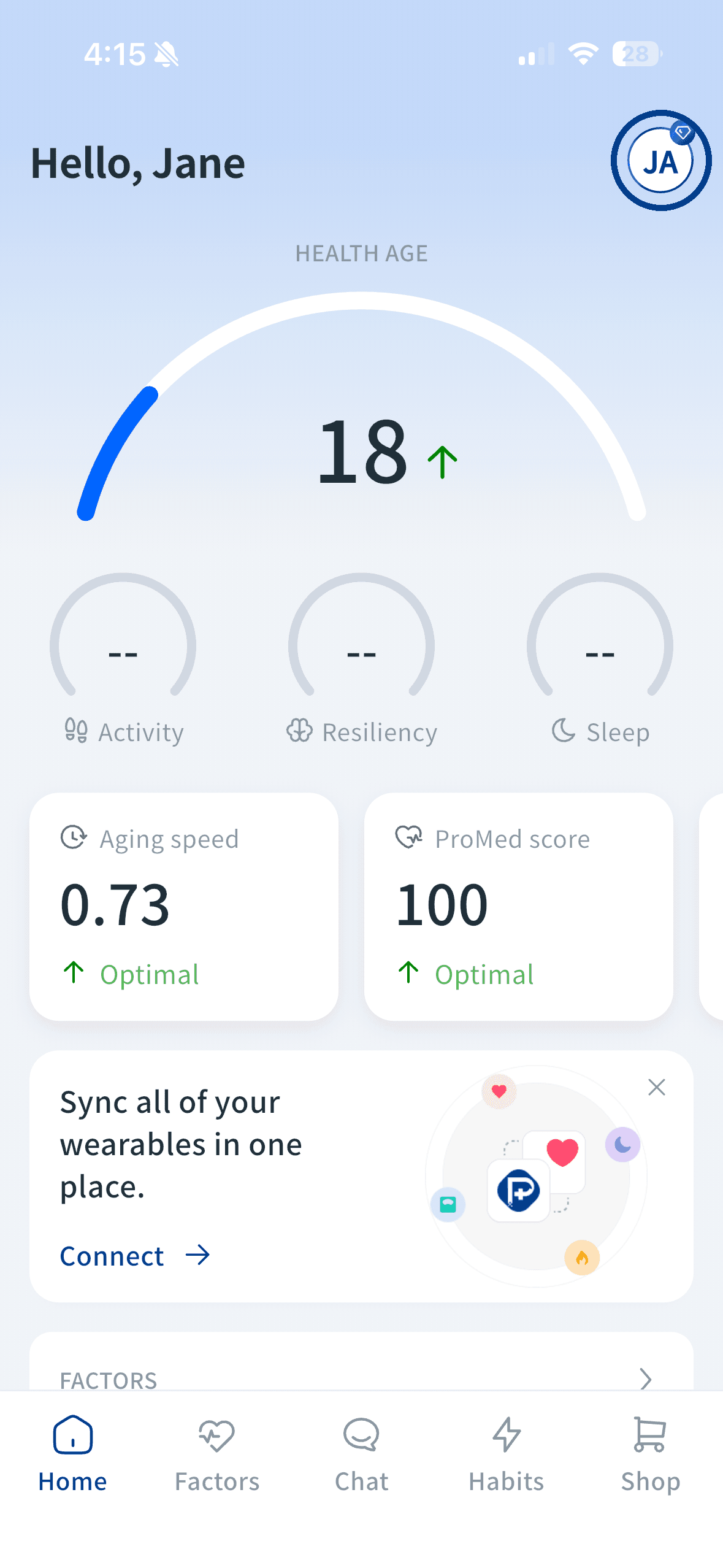
Once you are logged in, you will land on your Health Age dashboard: your personal overview showing your biological age score, aging speed, and ProMed score. From here, tap your profile icon in the top-right corner.
- 2
Step 2 of 9
Go to your profile
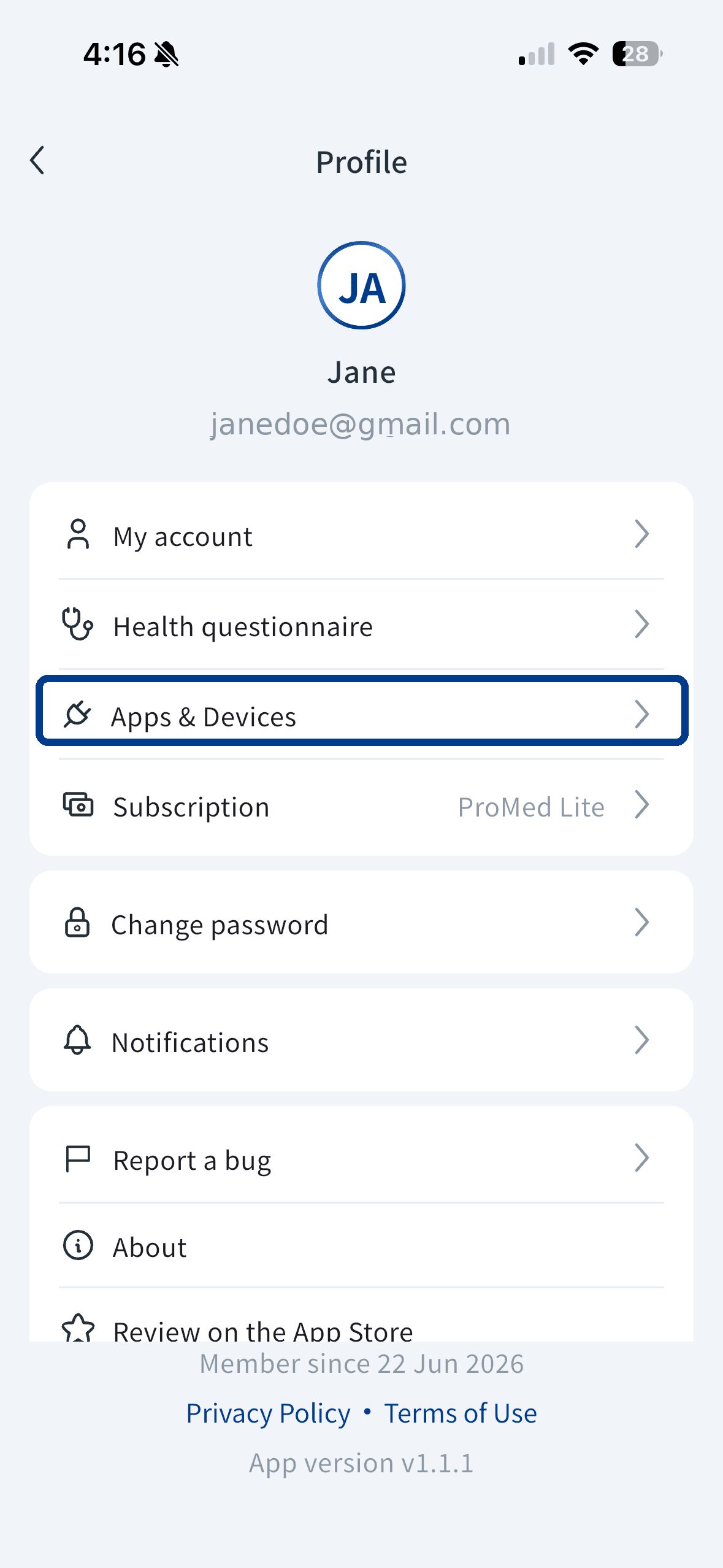
Your profile gives you access to account settings, your health questionnaire, subscription details, and the connected apps and devices area. Tap Apps & Devices to continue.
- 3
Step 3 of 9
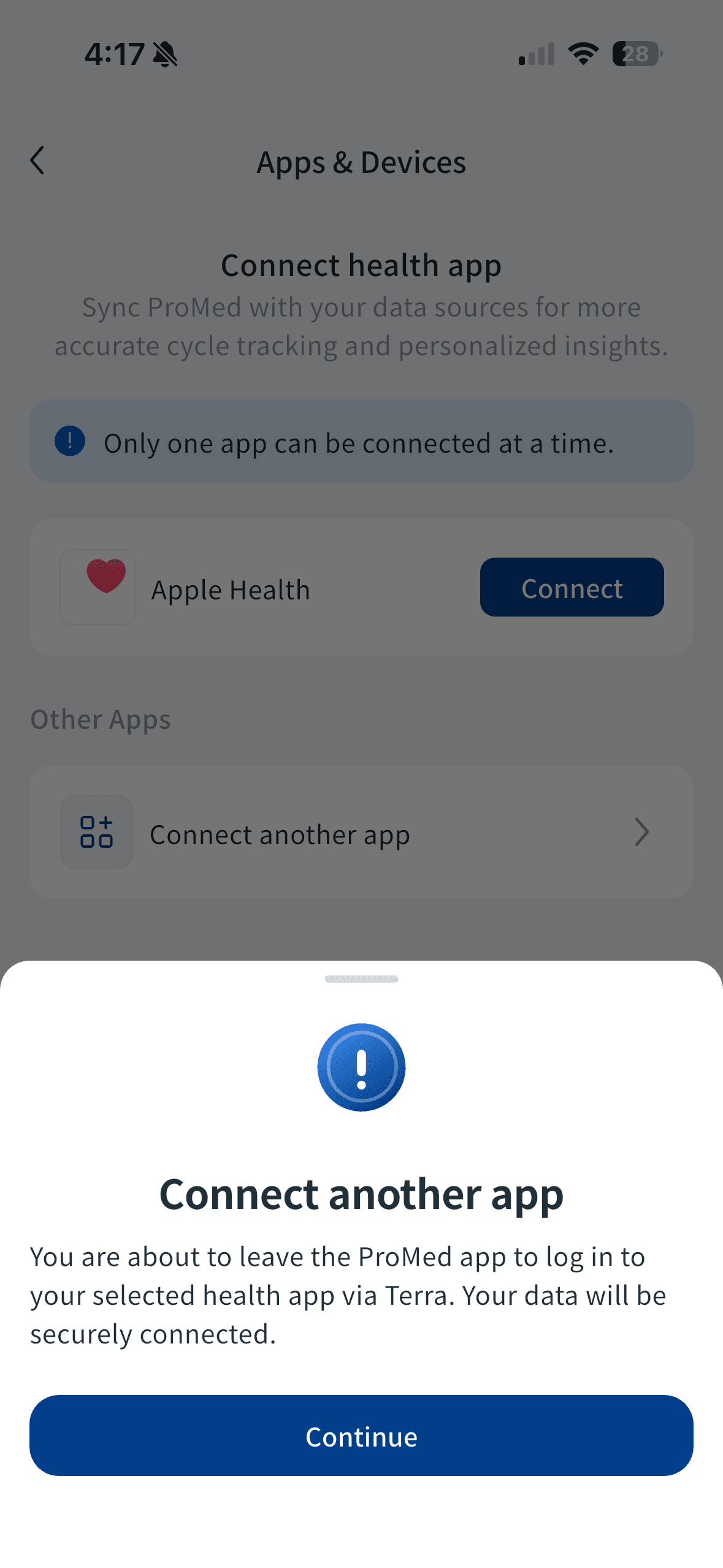
Select Apps & Devices
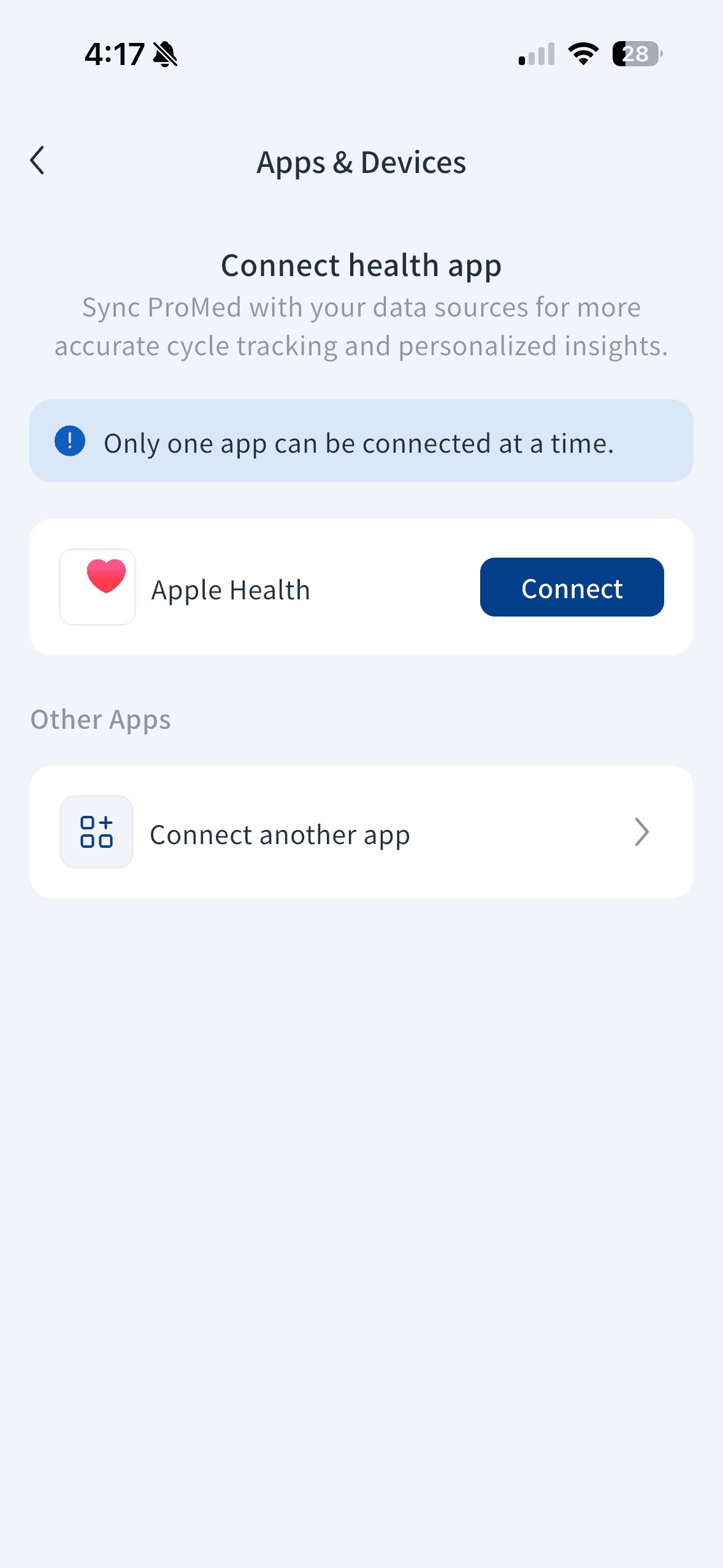
You can connect Apple Health directly with one tap. If you use Garmin, Fitbit, Oura, Coros, Samsung Health, or another supported wearable, tap Connect another app to open the full connection flow.
Only one app can be connected at a time. You can switch your connected app from this screen.
- 4
Step 4 of 9
Confirm you are leaving the app
A confirmation screen will let you know you are about to be redirected to log into your health app through Terra, ProMed's secure data partner. Tap Continue to proceed.
- 5
Step 5 of 9
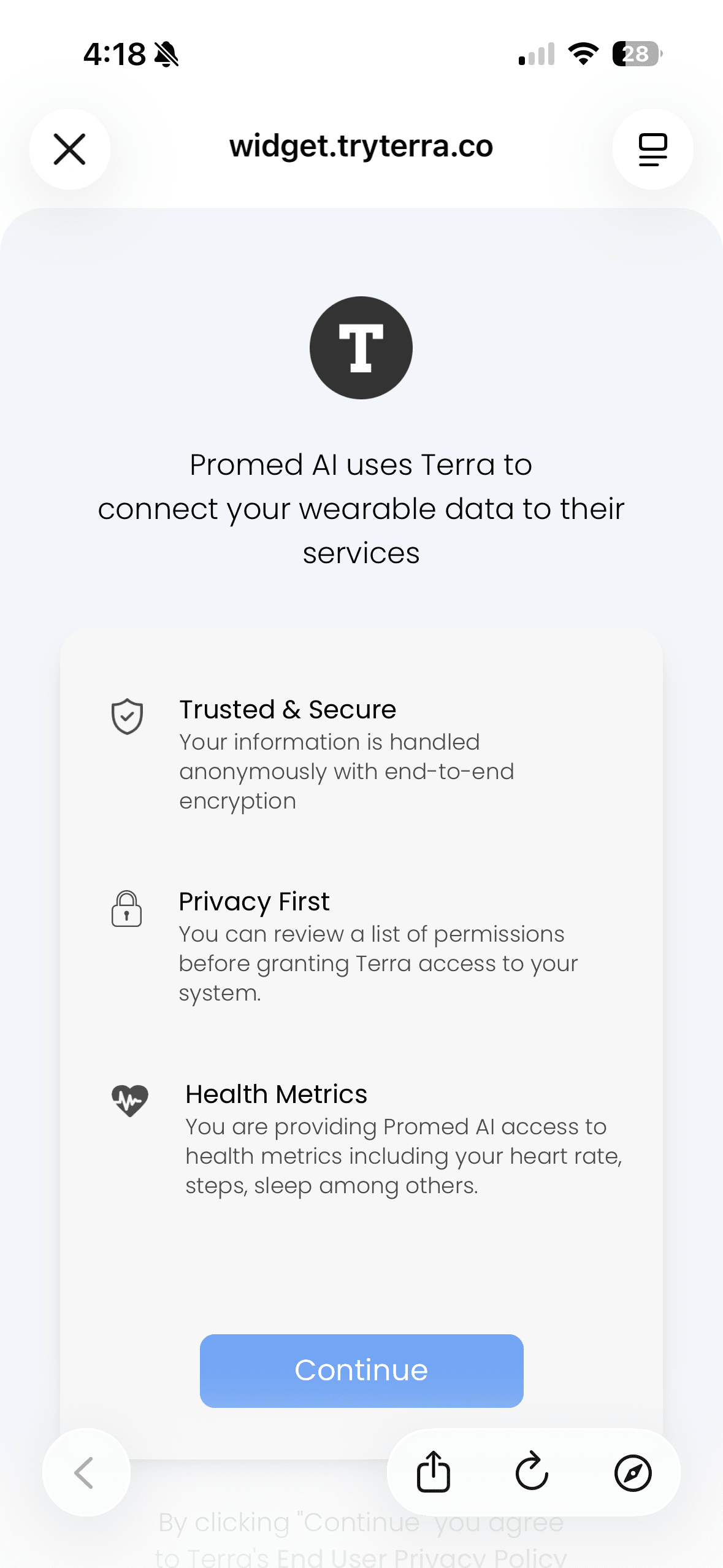
Meet Terra, ProMed's data partner
ProMed uses Terra to securely connect wearable data. Terra is encrypted, privacy first, and lets you review permissions before granting access to metrics such as heart rate, steps, sleep, and activity. Tap Continue.
- 6
Step 6 of 9
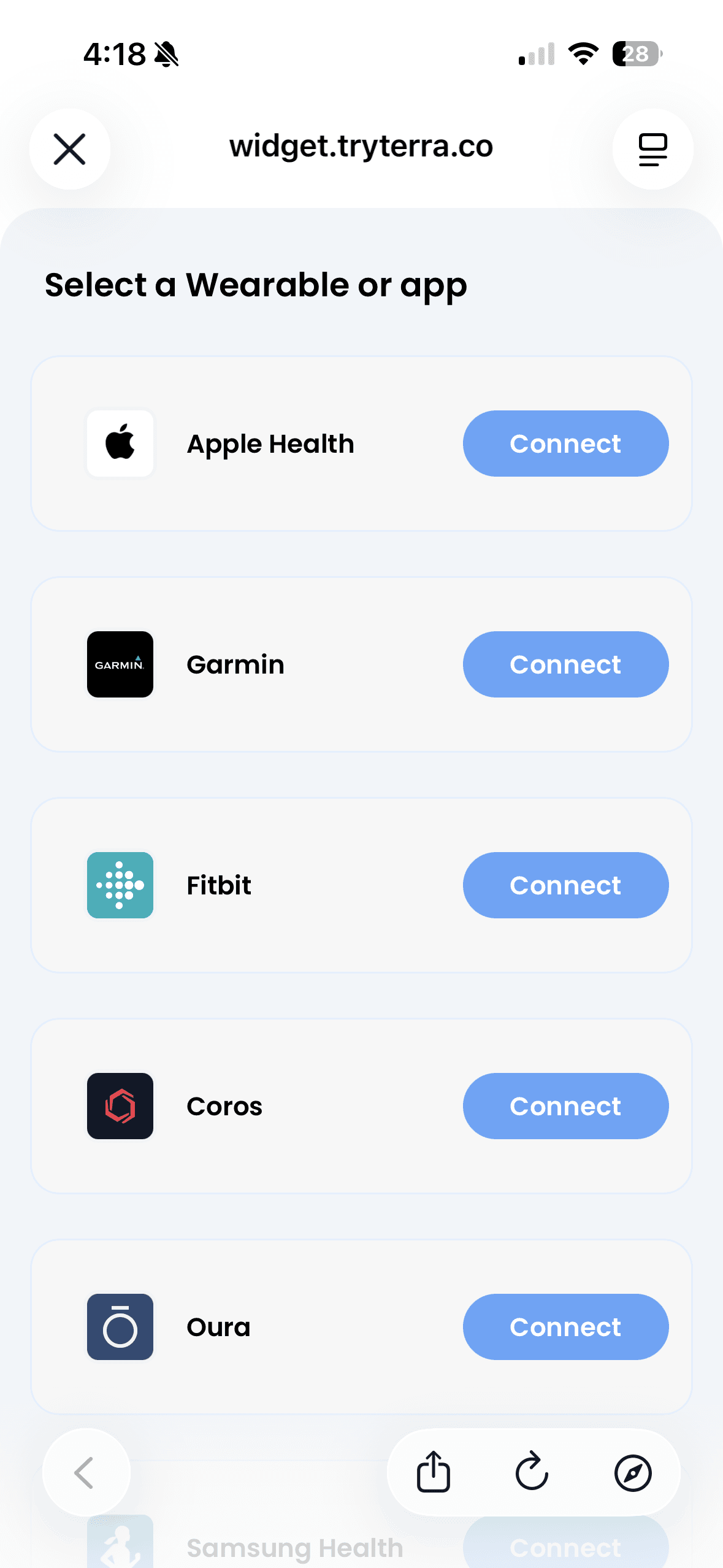
Select your wearable or app
Choose your device from the supported app list, then tap Connect next to your device to move into authorization.
- 7
Step 7 of 9
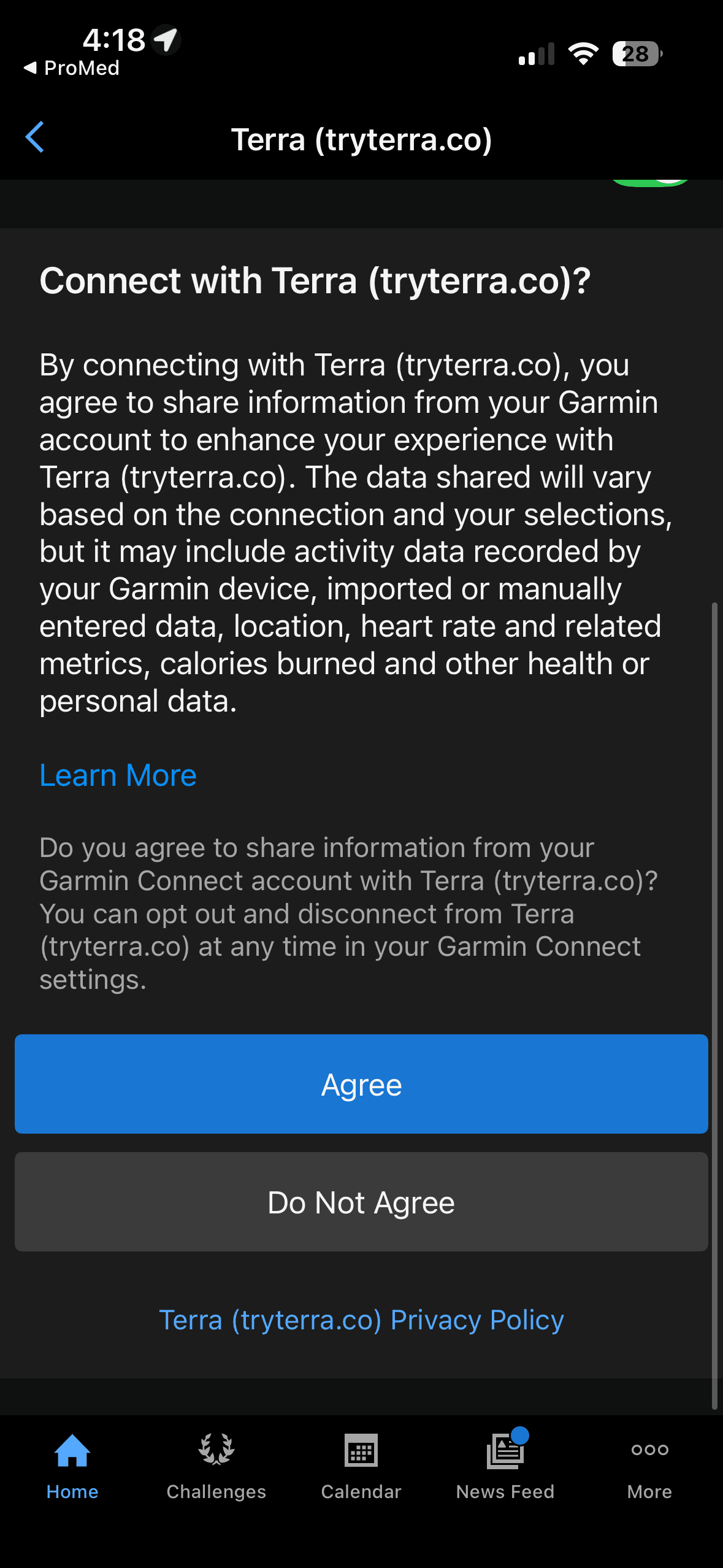
Authorize data sharing
Your wearable app will ask you to confirm data sharing with Terra. Review the permissions for activity, heart rate, calories, location, and other health metrics, then tap Agree to authorize the connection.
You can disconnect at any time from your settings.
- 8
Step 8 of 9
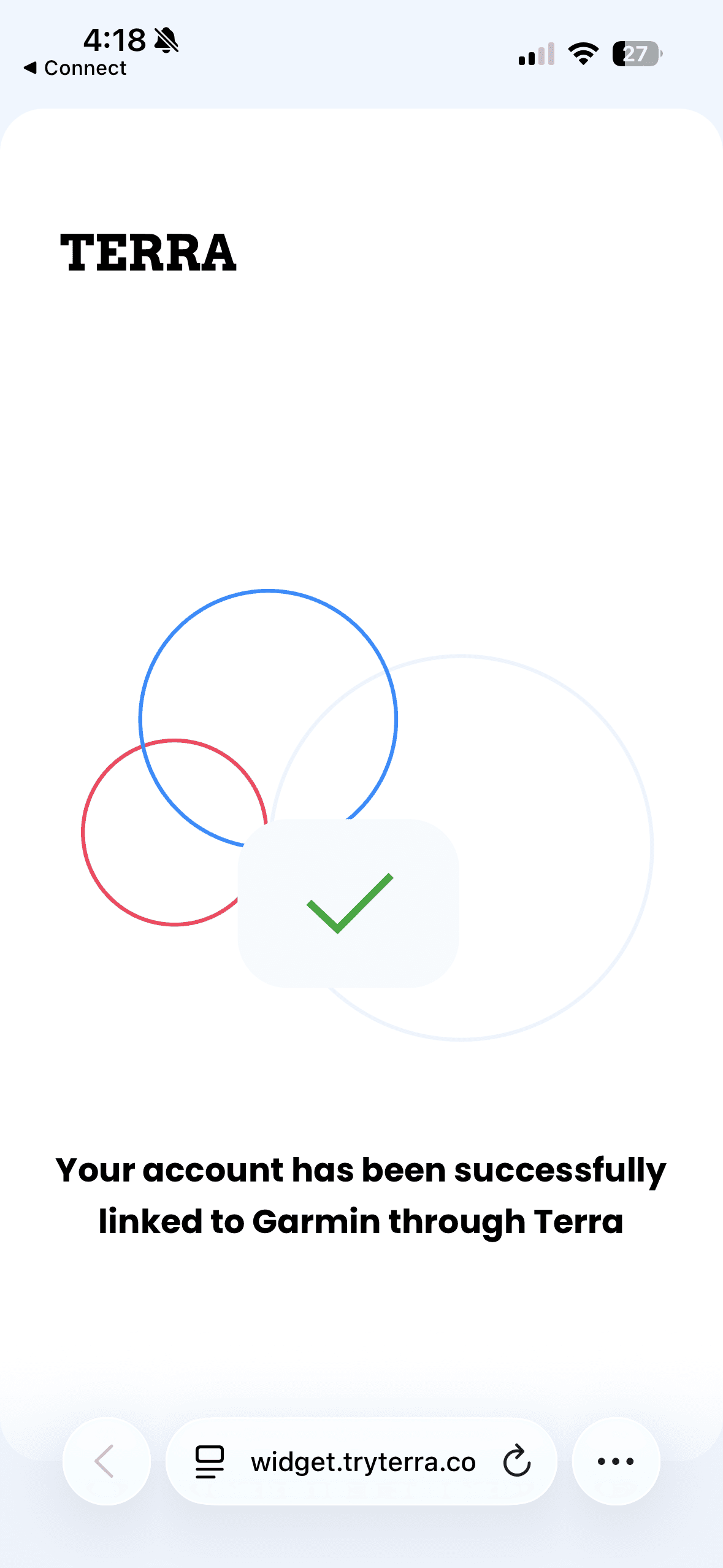
You are connected
Your wearable is now linked to ProMed through Terra. Your data will begin flowing into the app, giving your 24/7 AI health agent real-time context for more personalized guidance.
Historical data can take up to 24 hours to fully compile in ProMed. Your scores will update automatically once sync is complete.
- 9
Step 9 of 9
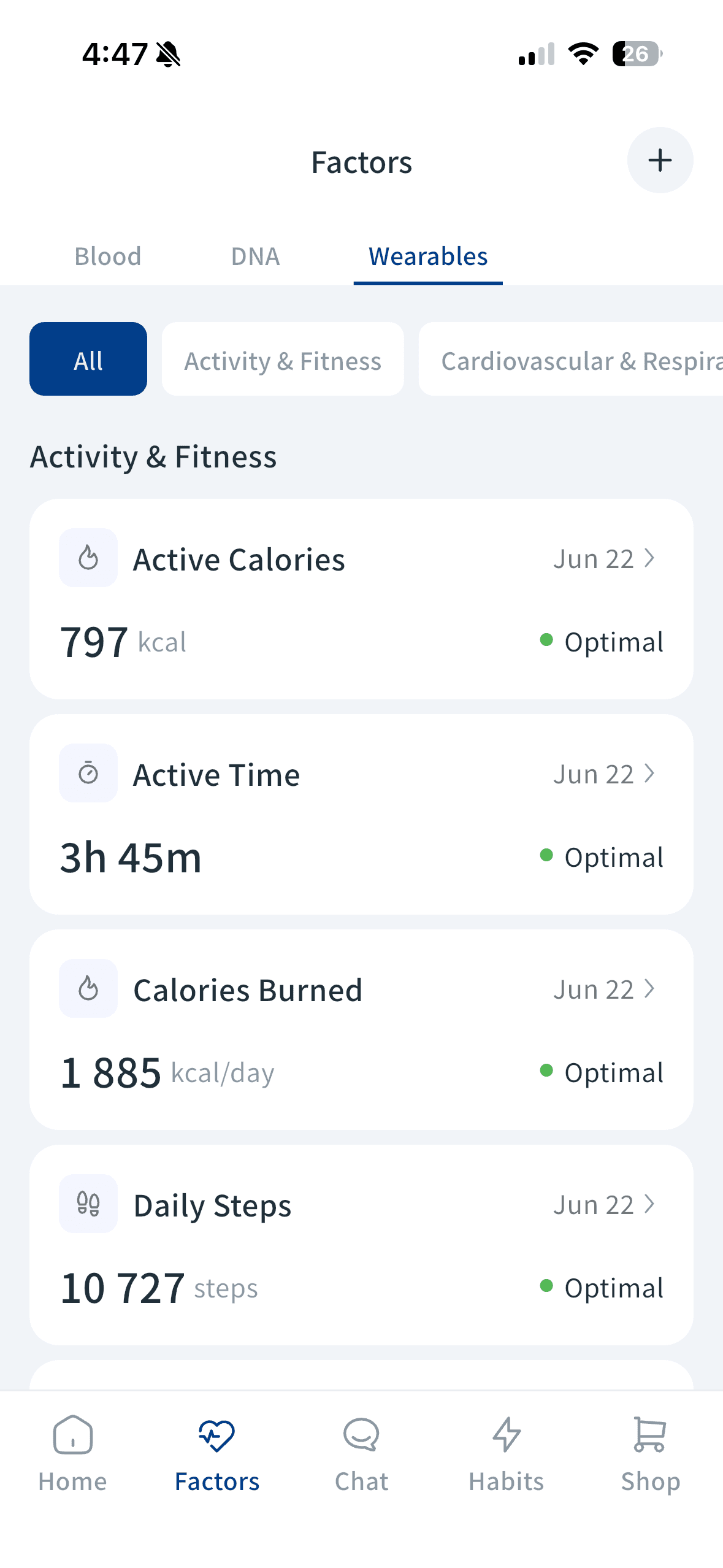
Review your data
Once your wearable is connected, open the Factors tab and tap Wearables to see activity, sleep, and fitness metrics flowing in. Then use the Chat tab to ask your AI health agent how your data reflects your goals and habit plan.
Do not have ProMed yet?
Start with your free Health Age assessment. It takes five minutes and gives you a clear picture of where your biological health stands today.
Get your free Health AgeProMed AI provides physician-reviewed, AI-analyzed health guidance for health-conscious Canadians. ProMed results are intended to complement, not replace, the patient-physician relationship and do not constitute a medical diagnosis.